bmonitor

Your iPhone camera,
on your Mac.

The free Mac app that monitors and controls an iPhone running Blackmagic Camera. See the shot, hear the mic and start recording from your desk, over Wi‑Fi, about 0.3 s behind.

Free and open source · macOS 14 or later · Apple Silicon and Intel · Public beta

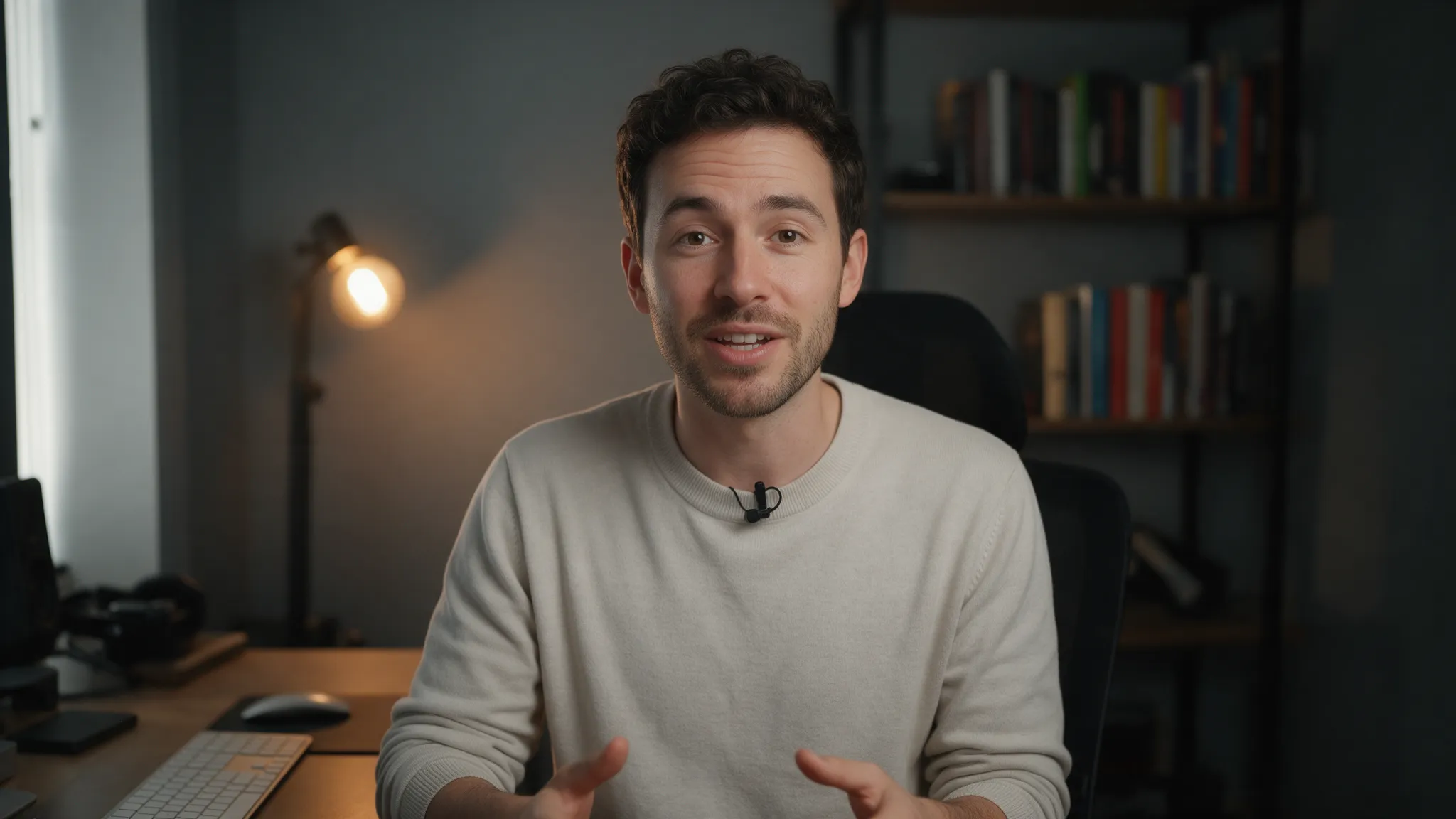
Interface drawn to the app's real layout. The person is an AI-generated illustration.
ISO250
Shutter1/60
WB5600 K
Tint+10
FocusAF
Lens · 24 mm1×
AudioiPhone Microphone
Try it: click the video to focus, or the red button to record. Interface drawn to the app's real layout. The person is an AI-generated illustration.

Still walking to the tripod
to check the shot?

Blackmagic Camera only monitors from a second iPhone or iPad. bmonitor puts the picture, the sound and the controls on the Mac that's already on your desk.

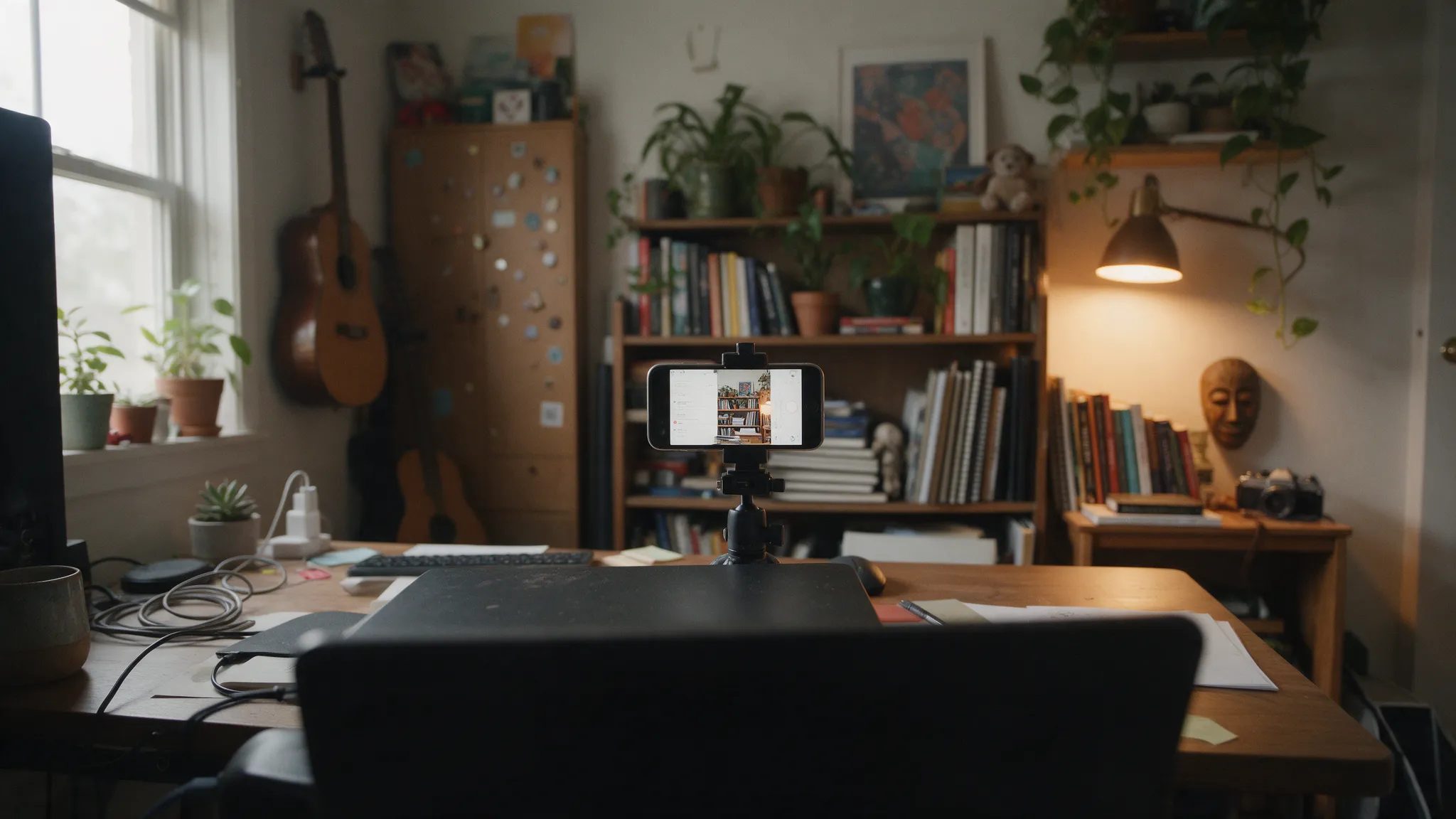
Before · the shot on the iPhone, two meters away
REC 00:12:48 42 min ISO 2501/605600 K1×AF
After · the same shot on your Mac, with every control

Readable from across the room.
Built to feel native.

REC00:12:48:06 42min

Read it from 3 m. Recording, timecode, the active mic and the minutes left on the iPhone stay large in the top corners. A red border tells you you're rolling.
Click to focus. Click anywhere on the video and the iPhone focuses there. Zoom, lens and stabilization are one click away too.

ISOAuto
10012516020025032040050064080010001250

Every setting, one click. ISO, shutter (speed or angle), white balance with light presets and tint. The Mac shows the value the camera confirmed, not the one you asked for.

iPhone Microphone

L
R
-40-20-90

Hear what the camera hears. The mic's name and an L/R meter in Blackmagic's own green, yellow and red. The camera's sound can play on the Mac, muted by default.

I
ISO
S
Shutter
W
White balance
T
Tint
L
Lens
A
Audio input
M
Mute
G
Grid
F
Focus now
⌘R
Record

One key per control. I for ISO, S for shutter, W for white balance, ⌘R to record. Press ⌘/ to see them all.

Set it up once.
Then just open it.

After the first time, bmonitor finds the iPhone by itself.

  1. Install

    Open the .dmg and drag bmonitor to Applications.

  2. Allow the network

    When the Mac asks to let bmonitor find devices on your local network, click Allow.

  3. Set up Blackmagic Camera

    In its settings, set Remote Camera Control to Remote Camera and turn on the HTTP server.

  4. Open and shoot

    Same Wi‑Fi, Blackmagic Camera on the camera screen, auto-lock off. Open bmonitor.

Full setup and troubleshooting guide

Questions before you install.

What do I need?
A Mac with macOS 14 Sonoma or later (Apple Silicon or Intel), an iPhone with the free Blackmagic Camera app, and both on the same Wi‑Fi network.
Does it record on my Mac?
No. Recording stays on the iPhone, in the quality you chose there. The Mac is the monitor and the remote control.
How far behind real time is the video?
About 0.3 s glass to glass, most of it on the iPhone side. Enough to check framing, focus and sound while you talk.
What does it change on my iPhone?
It adds a streaming platform called “Mac Monitor SRT” to Blackmagic Camera and makes it active while bmonitor is open. When you quit, it stops the stream and restores the platform you had before.
Can I use more than one iPhone?
One at a time. If there's more than one on the network, bmonitor asks which one to use.
Is it finished?
It's a public beta. It works every day on the author's setup, but it was tested on one Mac and one iPhone, so expect rough edges and report what you find.
Is it made by Blackmagic Design?
No. bmonitor is an independent project that talks to Blackmagic Camera through its documented remote API and live stream.
Is it free?
Yes. Free and open source (MIT), with no ads, no account and no paid version. It collects nothing and only talks to the iPhone on your network. If it's useful to you, a coffee is welcome and never required.

Free. Open source.
Built for the Mac.

Requires macOS 14 or later · Apple Silicon and Intel

If bmonitor saves you a few trips to the tripod, Buy me a coffee